Foreword
A while ago, many friends asked if there were any truly stable, fast, and free VPN solutions. Today, I bring you good news – the strongest free secure internet tool is back.
The protagonist this time is still the internet's "great benefactor" – Cloudflare. Its Cloudflare WARP uses Zero Trust and the Wireguard protocol for free use, and the actual tested experience is quite amazing.
Getting Started
Next, I have compiled the complete registration, installation, and configuration process into a detailed tutorial. You can follow the steps to operate.
Registration
First, you need to register for a free Cloudflare account.
After opening, click "Sign up" below. The registration method is flexible. You can quickly log in using your Google or Apple account, or register via email.
Configure Zero Trust
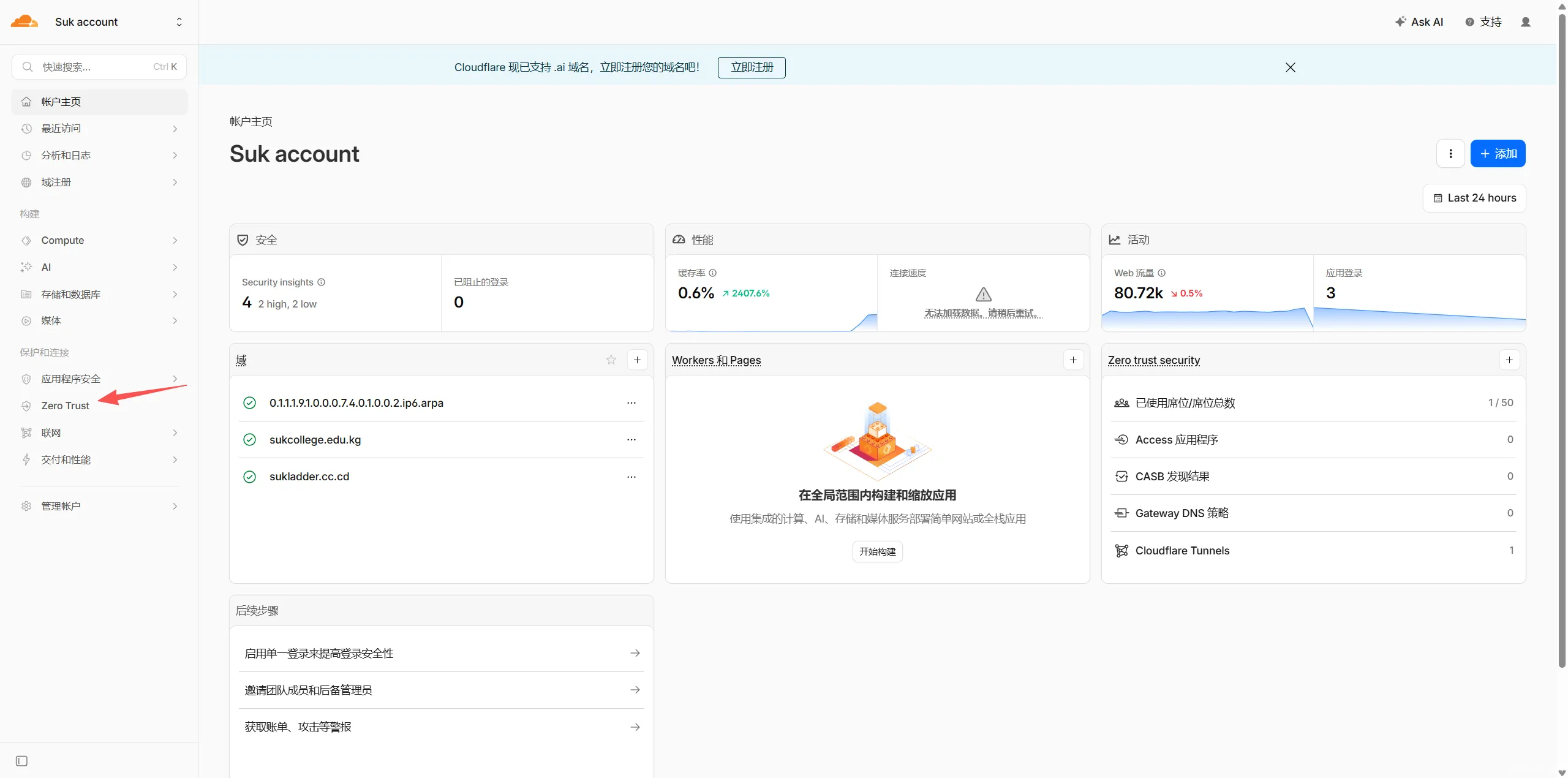
After successful login, find the Zero Trust entry in the left-side menu and click to enter. If it's your first time using it, you will see a welcome screen. Click "Get started".
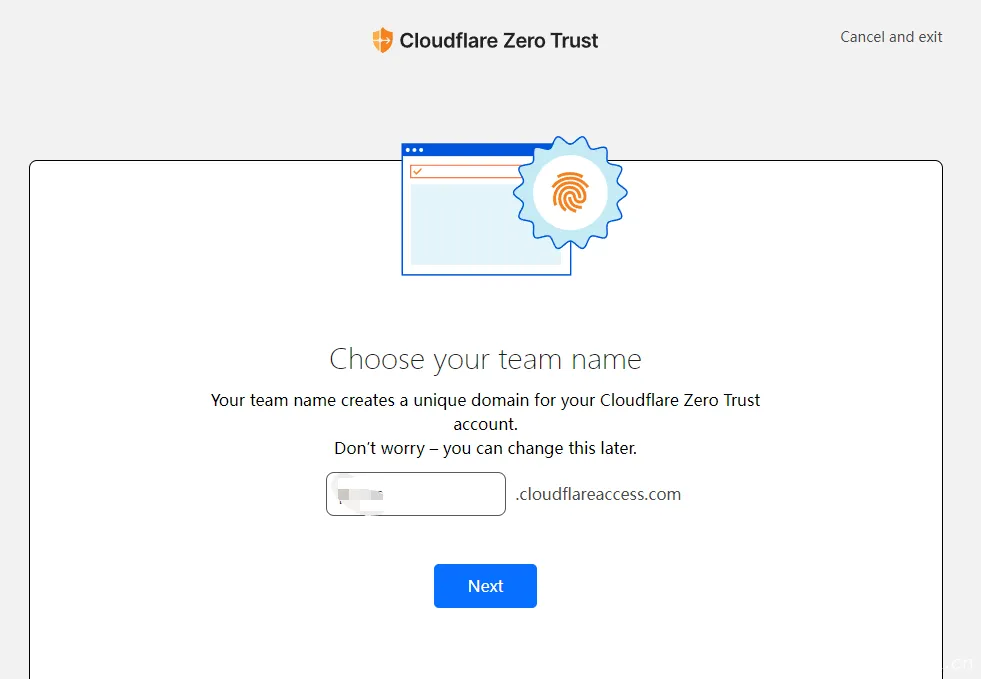
Then you need to enter your team name. Let's pick a random name, for example, suk.
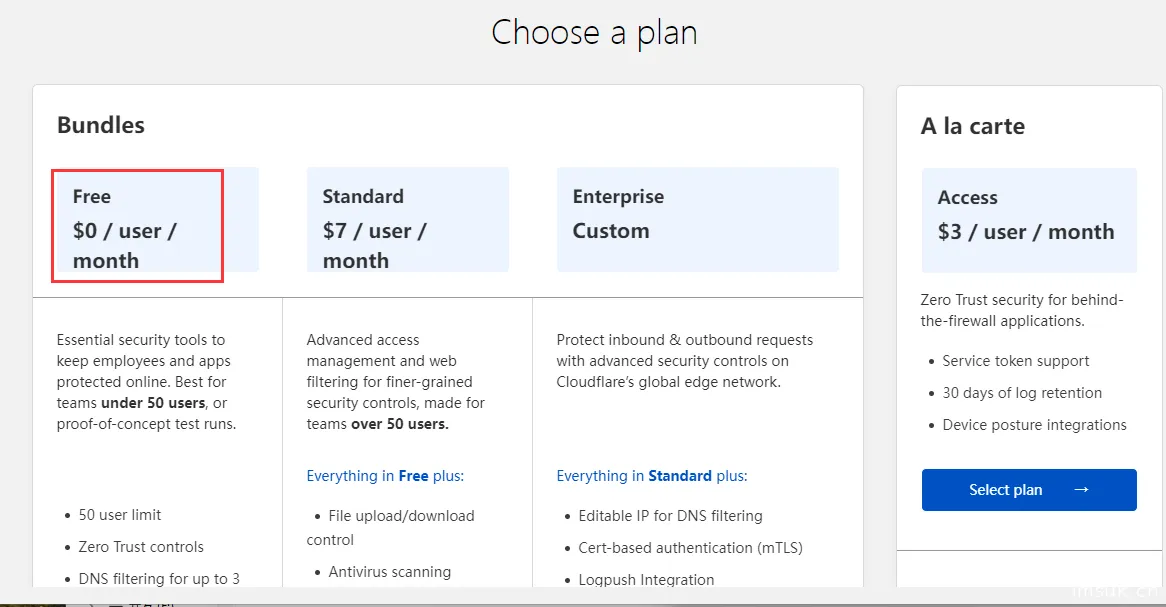
Click next and select the free plan.
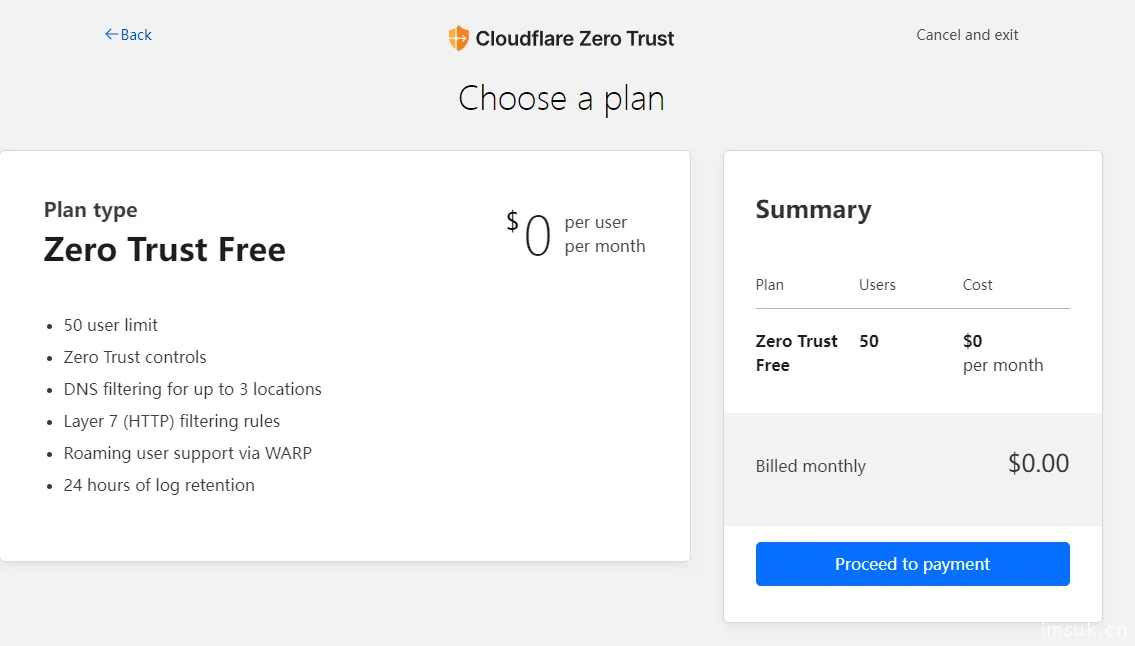
When this appears, click "Cancel and exit" in the upper right corner.
Then open the Zero Trust page again.
Device Policy Settings
Find the "Settings" or "Integrations" option in the bottom left corner, enter the "Service Providers" related page, and find the WARP client registration entry. Click "Add device", and the system will prompt you to download the WARP client.
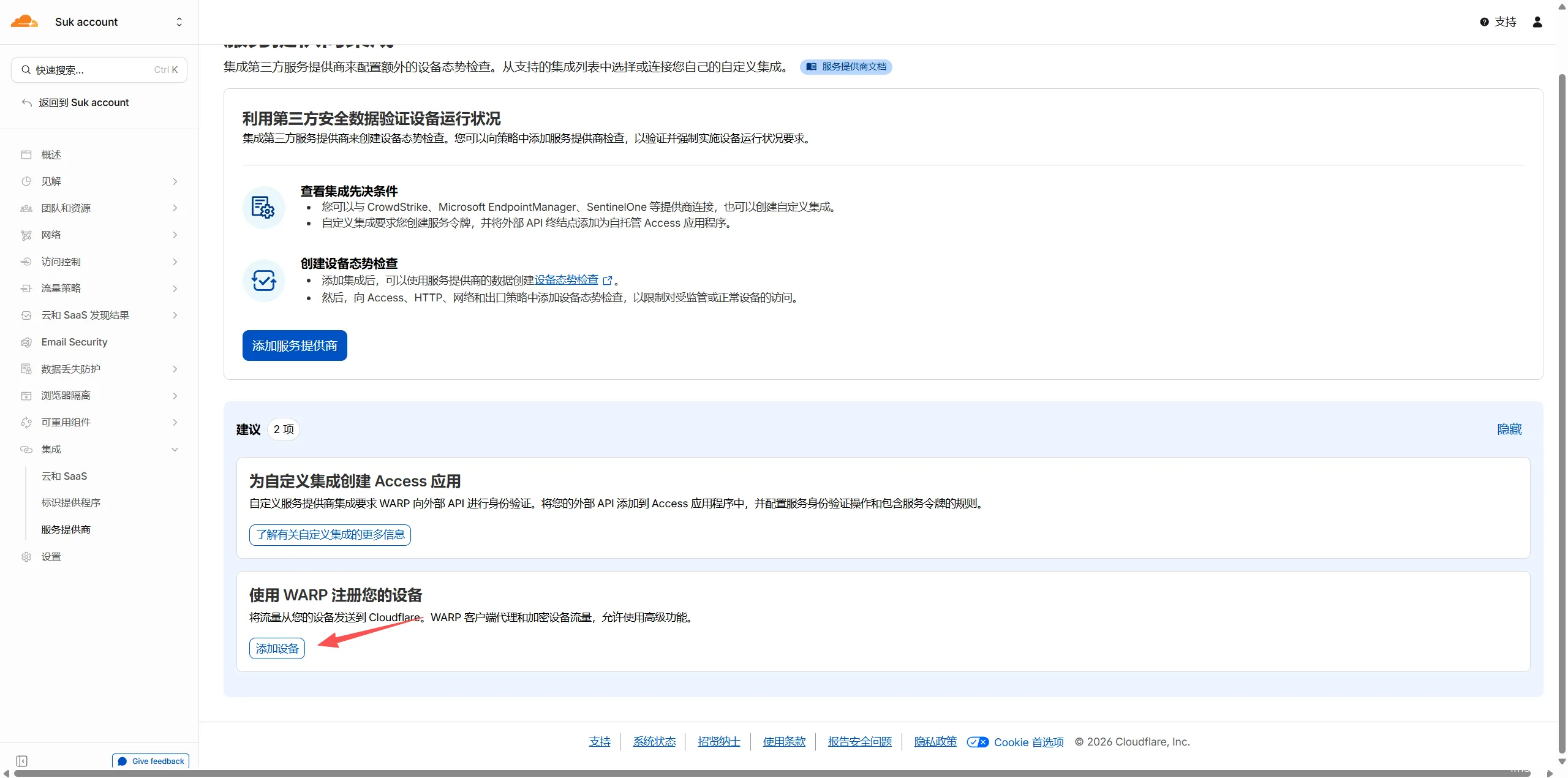
Currently, the client supports mainstream systems such as Windows, macOS, Linux, iOS, and Android. Select the corresponding system to download the stable version. The Windows version installer is about 130MB and supports Windows 10, Windows 11, and Windows 365.
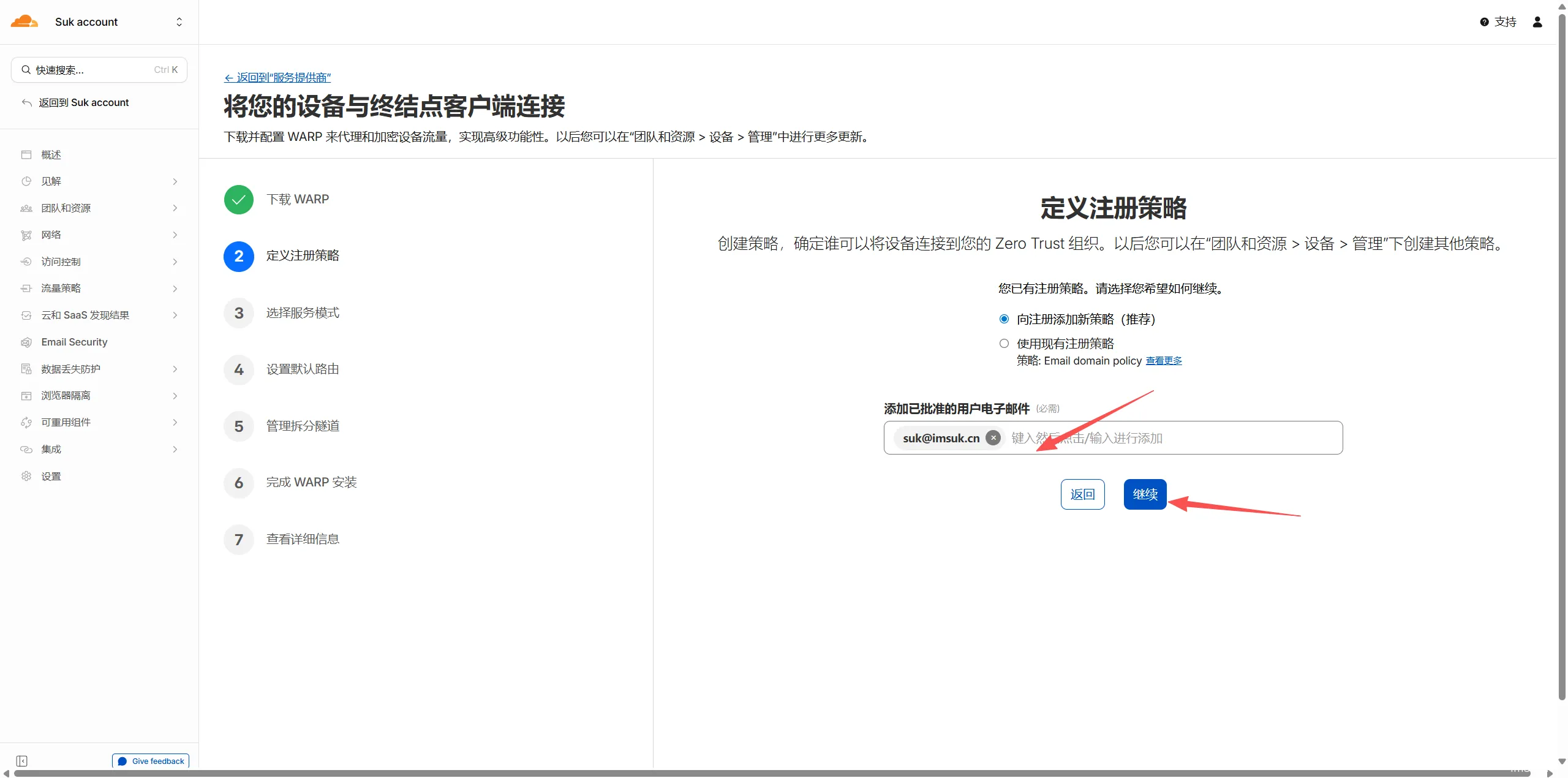
Next, enter an email address where you can receive verification codes. After confirming it's correct, continue.
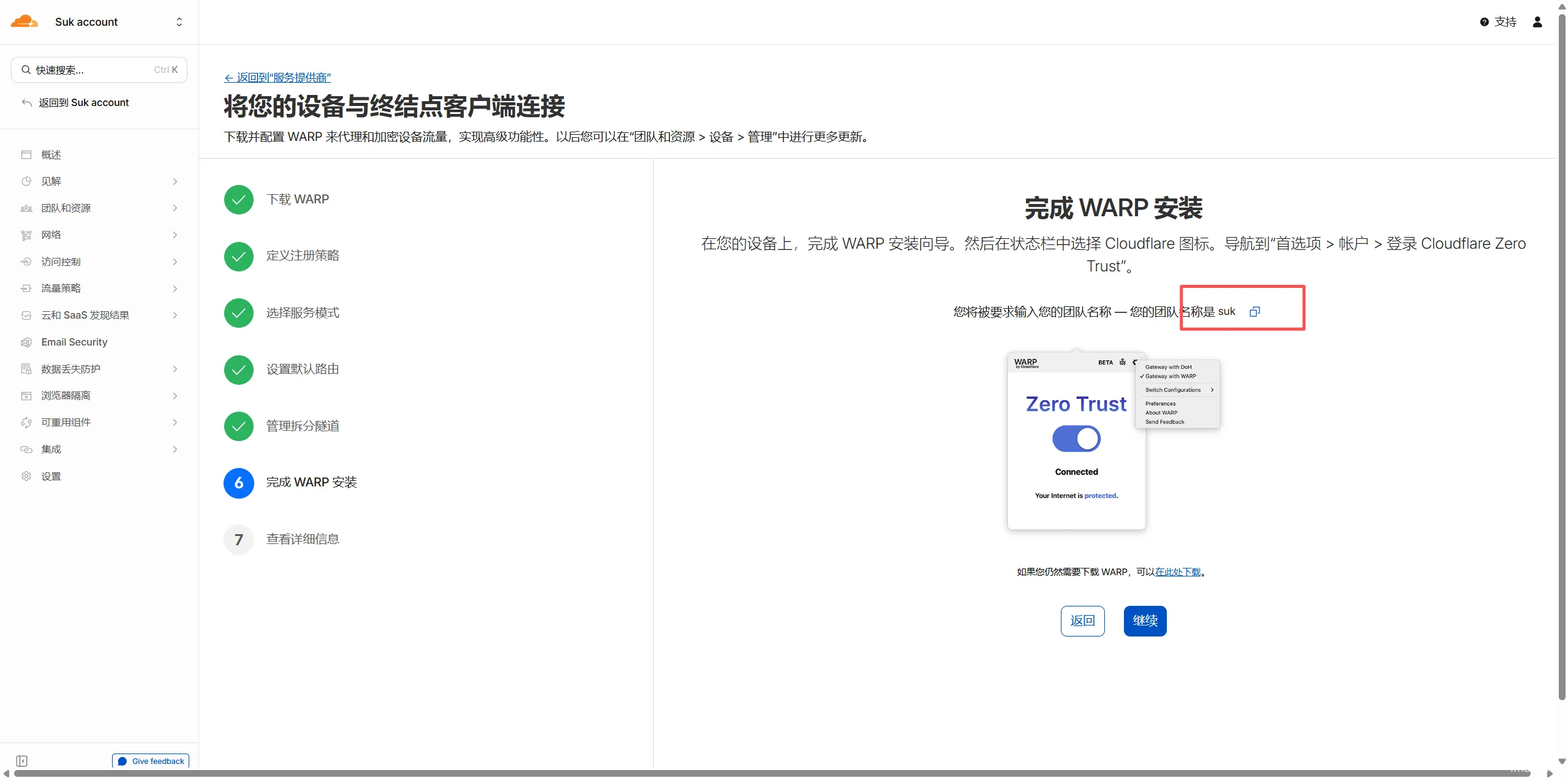
At this step, remember your team name, which is the one you set at the beginning.
Software Login
PC Version
Install the downloaded WARP installer, grant the necessary permissions, and proceed with the next steps.
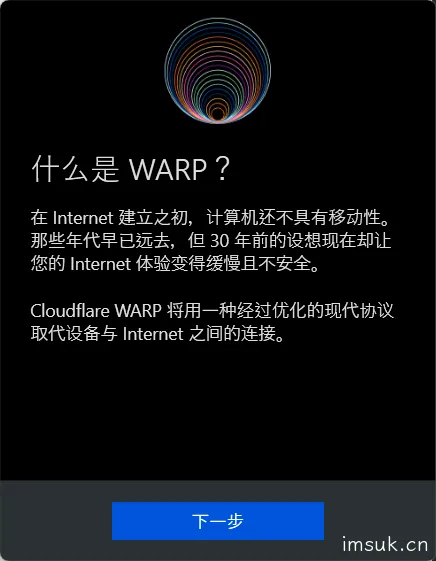
Click the settings icon, go to "Preferences" → "Options" → "Account", and select "Log in with Cloudflare Zero Trust".

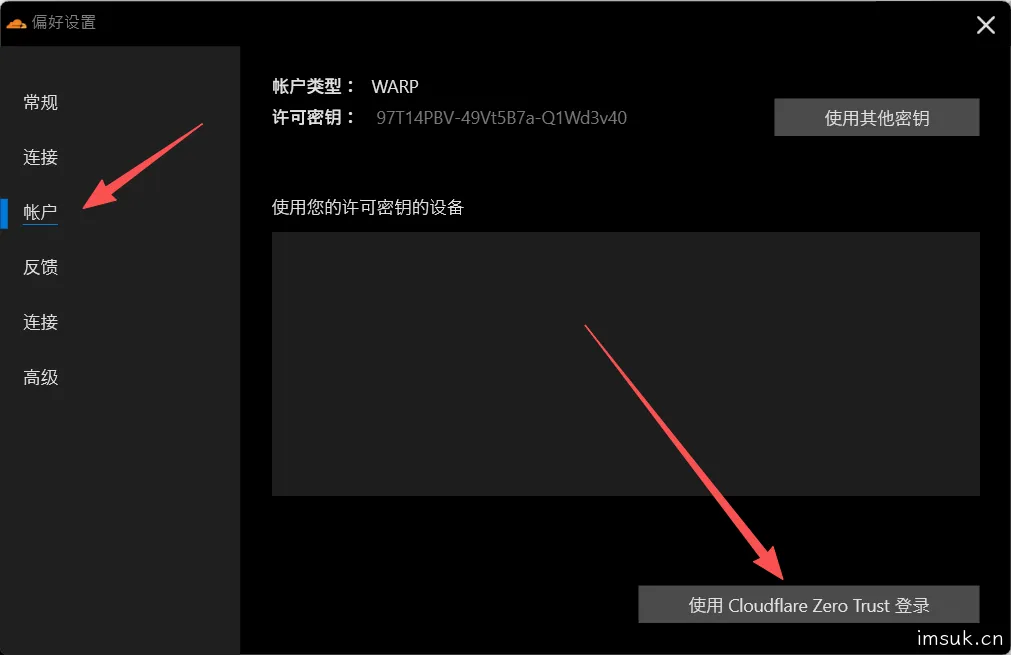
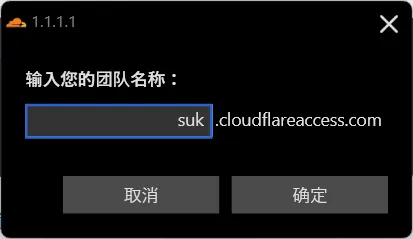
Then click next until you are prompted to enter the team name you just created. After entering, a verification code will be sent to your registered email address. Fill in the verification code to complete the login.
Remember to open the software after logging in.
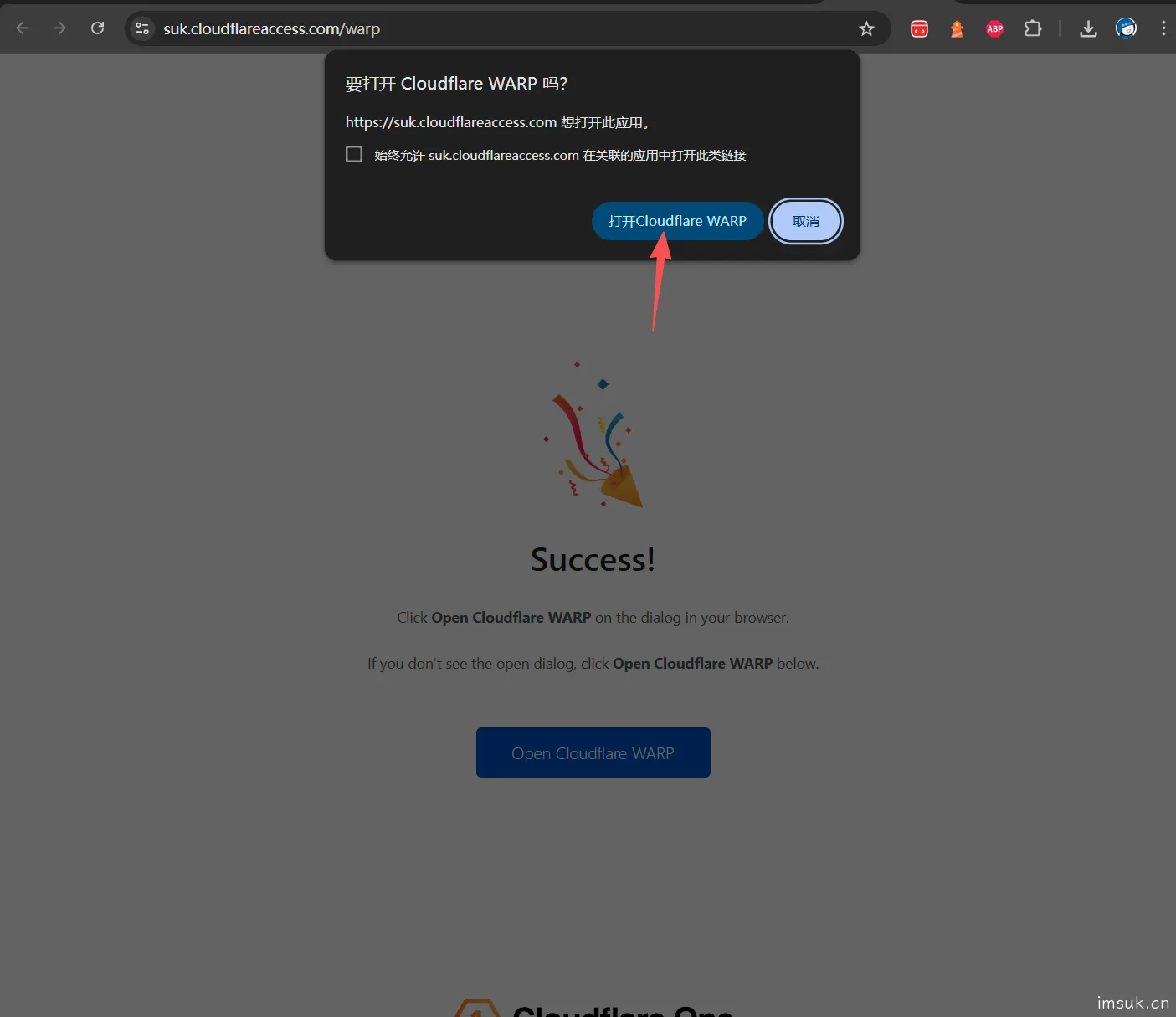
Click "Connect". The tunnel will be established within seconds, and the status will show "Connected, your network is protected".

Mobile App
Install the software the same way.
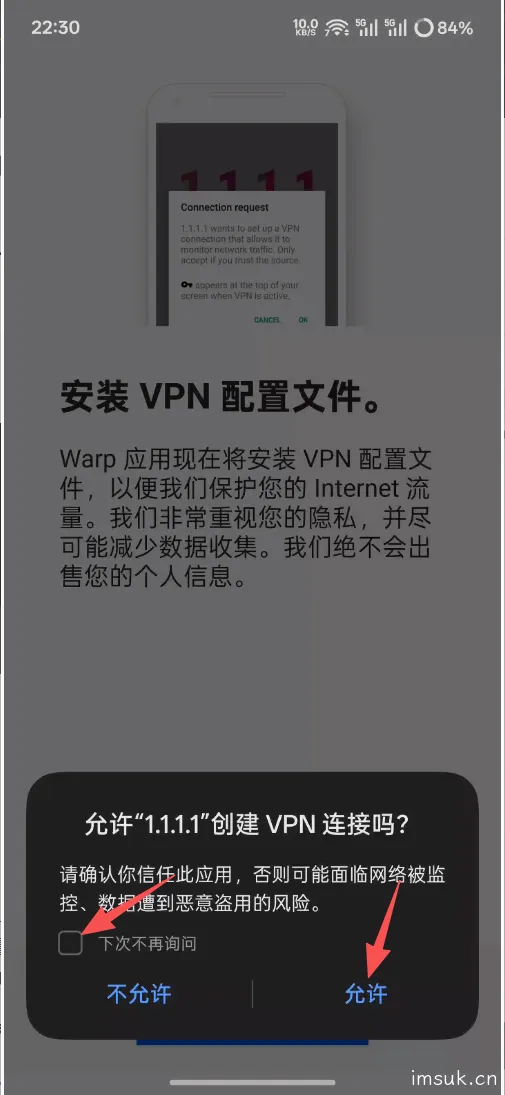
Click next until you reach this point. Remember to click "Allow". You may need to enter your password for verification on Apple devices. The general logic is the same.
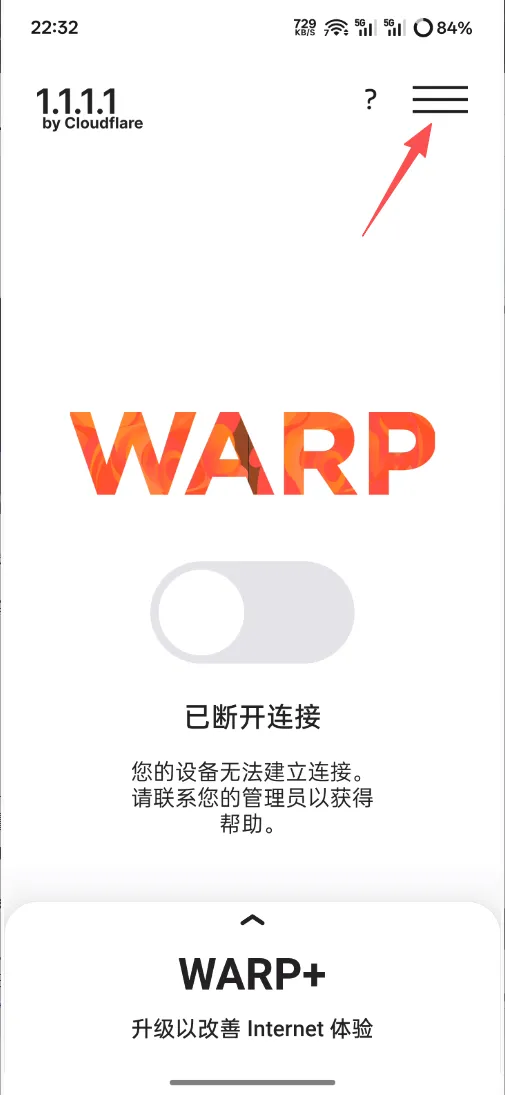
Go to the software's homepage and click the three horizontal lines in the upper right corner.
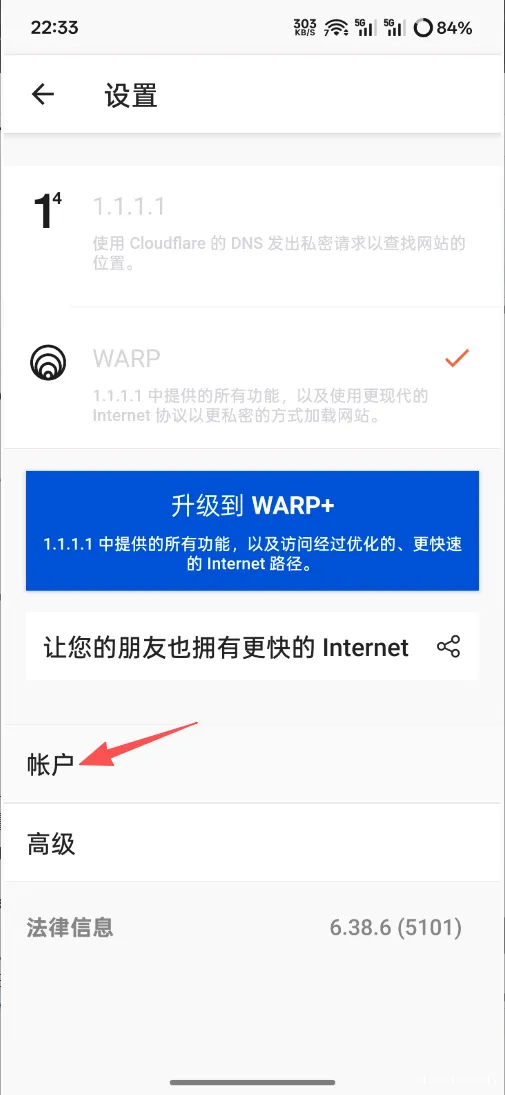
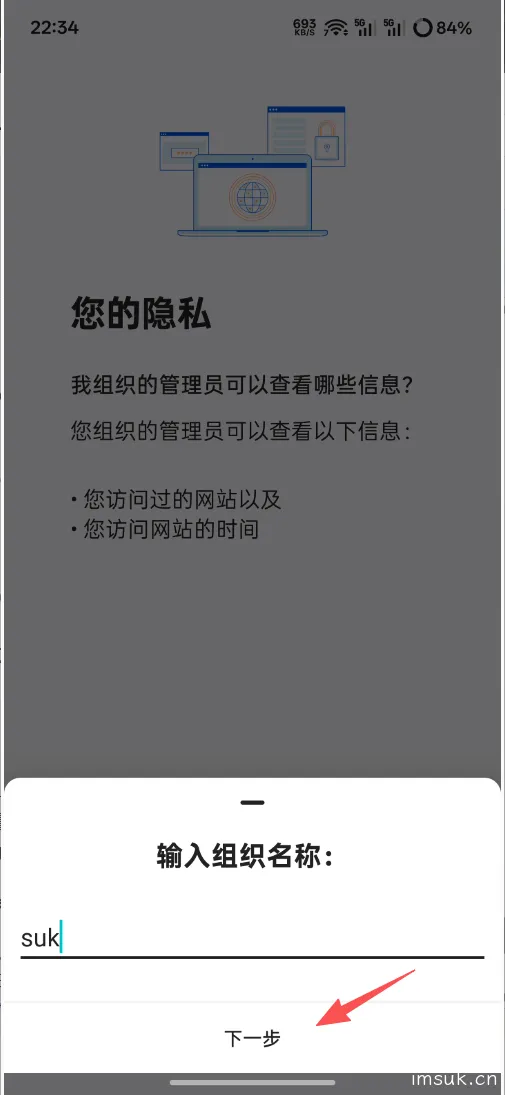
Click "Account", select "Log in to Cloudflare Zero Trust", enter your organization name, and then enter your registered email and verification code to log in.
Click "Connect" the same way. The tunnel will be established within seconds, and the status will show "Connected, your network is protected".
Summary
After a successful connection, you can see "API Connection" and "DNS WARP" both showing as connected on the client status page. The hosting center node is usually displayed as San Francisco. Traffic statistics show several GB used, but this free plan itself has no traffic limit, so you don't need to worry about quotas for daily use.
In summary, this Cloudflare Zero Trust-based WARP free plan has the following advantages:
First, it is truly free and supports multi-device usage.
Second, it is fast and stable, supporting high-bandwidth environments.
Third, it supports dual proxy modes for DNS and traffic, offering higher security.
Fourth, it performs excellently for daily browsing, streaming, and accessing AI services.
If you are looking for a stable, fast, and free network acceleration solution, this plan is highly recommended.
For complete operating steps and client download links, please refer to the original article on my blog. Following the steps in this article should prevent most errors.


5 comments
我的天啊,突然就好了,太感谢您了。
warp 是不是改名成了 Cloudflare One client,我们软件页面都长得不一样。
可能是改名了,因为这个教程有一段时间了🥲
为什么我的连接不上,一直卡在 26%?Windows 10
这个得看脸