Introduction: When "Security" Becomes a "Shackle"
In the digital age, Multi-Factor Authentication (MFA) is a crucial barrier to protecting account security. However, when your old phone is accidentally lost or damaged, or you forget to migrate the Oracle Authenticator app when switching to a new device, this barrier can instantly become an insurmountable wall.
If you're struggling to log in to Oracle Cloud, don't worry. This article will provide you with a "self-rescue" solution that doesn't require contacting customer service or enduring long waits.
Core Principle: Utilizing the IDCS Management Console
Oracle Cloud authentication is typically managed by Oracle Identity Cloud Service (IDCS). When you're unable to verify via MFA, you can temporarily disable MFA or generate bypass codes by directly accessing the IDCS management console.
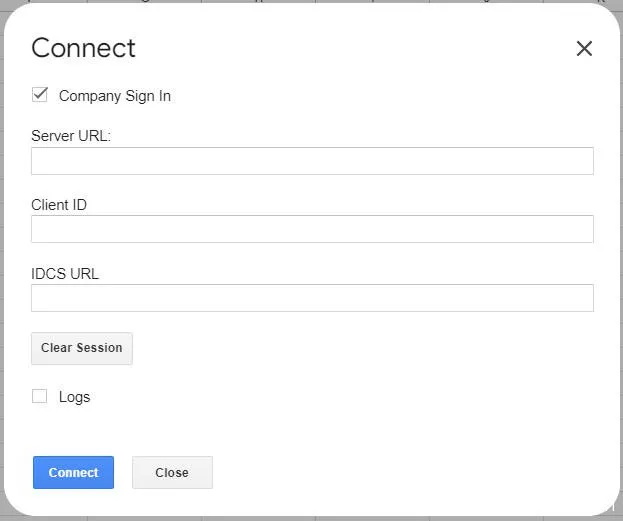
Detailed Operation Steps
Step 1: Obtain Your IDCS Instance URL
- Open the Oracle Cloud login page (usually
https://cloud.oracle.com). - On the interface for entering your email and password, do not click login.
- Look at the browser's address bar, find the URL starting with
https://idcs-********.identity.oraclecloud.com/, and record it completely.
Step 2: Construct the Management Page URL
Modify the URL recorded in Step 1 to construct an address that directly accesses the MFA management page.
Original URL Example:
https://idcs-xxxxx.identity.oraclecloud.com/Modified URL Example:
https://idcs-xxxxx.identity.oraclecloud.com/ui/v1/myconsole?root=my-info&my-info=my_profile_securityNote: Please replace xxxxx with the actual numbers or characters you recorded.
Step 3: Manage MFA Settings
- Open the modified new URL in your browser.
- After the page loads, you should see management options related to "Multi-Factor Authentication" or "Security".
Choose one of the following actions based on your needs:
- Temporarily Disable MFA: Find the toggle option to temporarily turn off MFA verification. (It is strongly recommended to re-enable it immediately after logging in)
- Generate Bypass Code: If the system supports it, generate a one-time use bypass code for this login.
- Reconfigure Authenticator: Delete the old authenticator binding and re-scan the QR code to bind a new device.
Step 4: Log In Again and Strengthen Security
After successfully entering the console, be sure to perform the following actions to prevent future difficulties:
- Re-enable MFA: If you chose to temporarily disable it, re-enable it immediately.
- Generate Backup Codes: In the MFA settings, find the "Generate Backup Codes" or "Bypass Codes" option, generate a set of codes, and save them securely (it is recommended to print them or store them in a password manager).
- Bind a Backup Device: If possible, bind the Oracle Authenticator to two devices (e.g., a phone and a tablet).
Risk Warning and Best Practices
- Security Risk: Bypassing MFA temporarily reduces account security. Ensure there is no suspicious network environment during the operation, and immediately restore security settings after the operation is completed.
- Data Backup: Regularly export Oracle Authenticator keys or use authenticator apps that support cloud synchronization (such as Microsoft Authenticator, Authy) to avoid single points of failure.
- Official Support: If the above methods do not work due to permission or configuration issues, the last resort is to contact Oracle official support to reset MFA by verifying identity information.
Summary
Technical failures are not scary; what's scary is losing control of the system. Through the URL construction techniques mentioned above, you can quickly regain access to Oracle Cloud. Remember, security tools are meant to serve you, not to restrain you. We hope this guide helps you get back "home" smoothly.
This article is compiled based on Oracle Cloud Infrastructure official documentation and community practical experience. Specific interfaces may vary slightly due to version updates.